
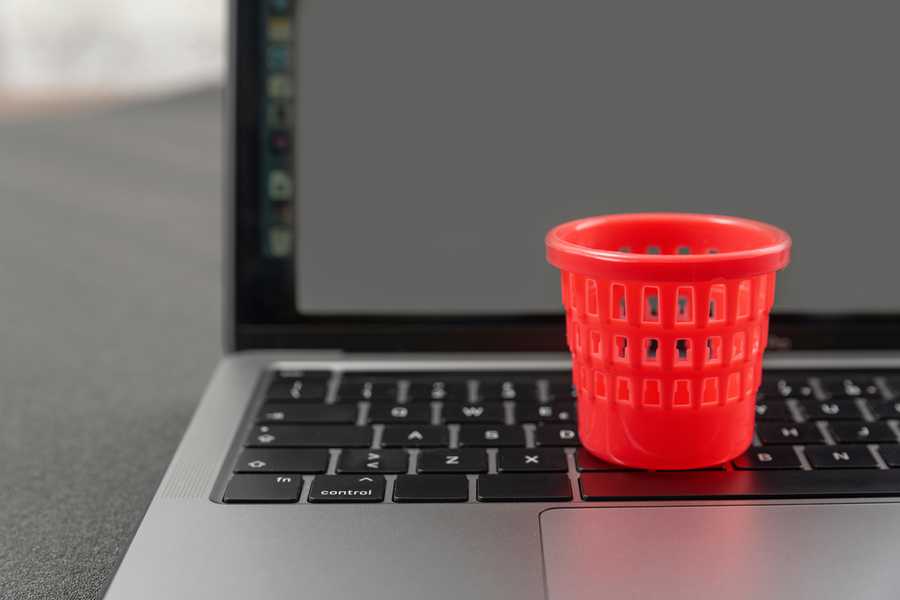
5 Ways to Clear Out Your “Digital Junk” and Make Your Phone and Computer Feel Brand New
When was the last time you checked how much storage your phone is actually using? For most of us, the answer is “only when it started complaining.” Month after month, we quietly pile up screenshots, duplicate photos, cached app files, and promotional emails, while our computer desktops turn into a maze of icons. The result is sluggish apps, laggy typing, slow startups, and the dreaded “Storage Almost Full” warning.
Here’s a scenario many of us know too well. You’re at a wedding, phone raised to capture the first dance. You tap record, and a pop-up appears: “Cannot record video. Not enough storage.” While the music plays, you frantically scroll through your gallery, deleting random photos as if you were defusing a bomb. By the time you’ve freed enough space, half the song is over. It’s a small disaster, and a completely avoidable one. Here are five habits that keep your devices lean and ready for the moments that matter.
1. Purge Screenshots and Duplicate Photos
Your photo gallery is probably your biggest storage hog. Screenshots of receipts, parking spots, memes, and “read later” articles pile up fast, and burst shots and near-identical selfies add even more.
On an iPhone running iOS 16 or later, open Photos > Albums, scroll to Utilities, tap Duplicates, and hit Merge to keep the best version of each photo. Then scroll to Media Types, open Screenshots, tap Select, and delete what you no longer need. Deleted photos stay in Recently Deleted for 30 days, so open that album and delete them again to actually free up space. On Android, the Files by Google app suggests duplicates, blurry photos, and old screenshots you can remove in a few taps. Ten minutes here can reclaim several gigabytes.
2. Clean Up Messaging and Social Apps
Apps like Zalo, Telegram, and TikTok quietly store cached videos, voice messages, downloaded files, and thumbnails from every chat and feed you’ve scrolled through. Over time, a single app can swell to several gigabytes.
On Android, go to Settings > Apps, choose the app, tap Storage, and select Clear cache. Choose “cache,” not “clear data,” since the latter can log you out or wipe local content. iPhone has no one-tap cache cleaner, so use each app’s own tools instead. Telegram has Storage Usage under Data and Storage, TikTok offers a Free up space option in its settings, and Zalo has data management options for deleting old media. To see the biggest offenders, check Settings > General > iPhone Storage, and consider offloading apps you rarely use. Keep in mind that the payoff is space, not speed, because apps rebuild their cache and may feel slightly slower at first. Menu names also vary by brand and software version.
3. Unsubscribe in Bulk from Junk Email
An overflowing inbox isn’t just annoying, it’s risky. When 200 promotional emails arrive every week, the one message from your boss or a client is easy to miss. The fix is to unsubscribe aggressively.
In Gmail, open any promotional email and click Unsubscribe next to the sender’s name. If the Manage subscriptions page is available on your account (Google has been rolling it out gradually), it lists every sender that emails you regularly and lets you unsubscribe with one click. Apple Mail shows a similar “Unsubscribe” banner at the top of many newsletters. Set aside 15 minutes to go through your Promotions tab and cut off every sender you haven’t read in the past month. If a newsletter still feels valuable, keep it. Everything else goes. A quieter inbox means fewer distractions and far fewer missed work emails.
4. Try the “3-Folder Rule” on Your Computer Desktop
A desktop covered in icons makes it hard to focus, and files stored there also take up space on your system drive. Here is a simple system I recommend: only three folders are allowed on your desktop.
- Working: files and projects you’re actively using this week.
- Archive: finished projects and documents you might need someday.
- Inbox: a landing zone for new downloads and quick saves.
Every Friday afternoon, spend ten minutes emptying the Inbox folder by moving files into Working or Archive, or deleting them. Apply the same logic to your Downloads folder, which is usually an even bigger mess. Then empty the Recycle Bin or Trash, because deleted files still occupy space until you do. This isn’t an official standard, just a easy habit that works, and you can rename the folders to suit your workflow. Within a few weeks, opening your computer will feel like walking into a tidy room.
5. Use Cloud Storage Instead of Your Hard Drive
Your phone and laptop don’t need to be permanent warehouses. Cloud services like Google Drive and iCloud let you store files online and access them from anywhere. Just note that the free tiers are modest: Google gives you 15 GB shared across Drive, Gmail, and Google Photos, and iCloud gives you 5 GB.
On iPhone, turn on iCloud Photos and choose Optimize iPhone Storage, which keeps lightweight versions on your device and stores the full-resolution originals in the cloud. On Android, enable Google Photos backup, then use Free up space to remove local copies that are already safely backed up. On your computer, move old projects, scanned documents, and large videos into Google Drive or iCloud Drive, and use on-demand syncing so files only take up space when you open them. Remember that the cloud is a supplement, not a guarantee, so keep a second backup of truly important files.
Conclusion
A clean digital workspace does more than free up gigabytes. Your devices have room to breathe, your files are easier to find, your inbox stops overwhelming you, and you’re ready when an important moment arrives, whether that’s a wedding dance or an urgent document. The best part is that none of these tips requires special software or technical skills, just a little consistency. Try setting a monthly reminder for a quick cleanup session.
Now it’s your turn: how much storage is your phone using right now? Share your number in the comments, and tell me which tip freed up the most space for you!







Leave a Reply